
Chaos Studio · Beginner tutorial
How to test AI resiliency with Truvyx Chaos Studio
Chaos Studio lets you deliberately make an MCP tool unreliable, then observe what your agent does next. You can inject latency, errors, authentication failures, timeouts, partial responses, payload corruption, and schema drift—without changing the real downstream service. This guide follows the complete path from profile to proxy run, trace, classification, score, and export.
Chaos is a controlled experiment
A Chaos Studio run does not ask whether your agent can solve a clean scenario. It asks what happens when a dependency misbehaves. The agent should notice the fault, retry safely, fall back, escalate, or recover partially. A confident continuation that ignores corrupted or missing data is a resiliency failure.
Before you begin: prepare the baseline
Chaos Studio targets a scenario’s MCP tools. Start with a scenario in Scenario Studio and a normal evaluation run if you want a baseline comparison. The base run gives you a clean reference for status, score, system name, and execution time.
Do not begin with a production customer workflow. Use a test tenant, synthetic data, a disposable integration, and a narrow scenario. Chaos Studio is designed to return faults through its proxy; your agent must be pointed at that proxy for the injections to occur.
Step 1: build a Chaos Profile
Open Chaos Studio at /chaos-studio. The first tab is Profile Builder. Choose the scenario, give the profile a name, and optionally describe the experiment.
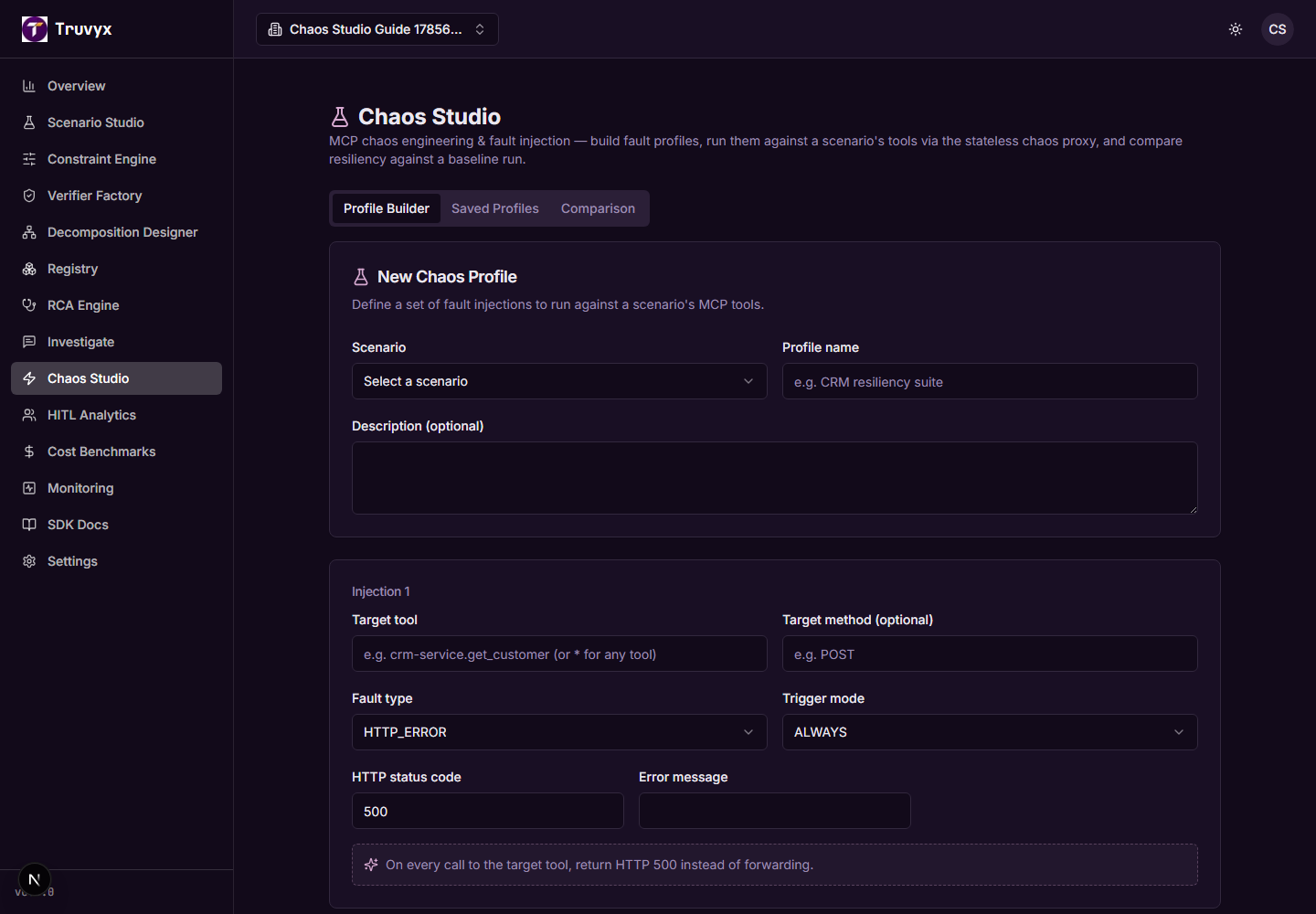
Each injection card has a target and a fault:
- Target tool: the MCP tool name, or
*for any tool. - Target method: optional HTTP method such as POST.
- Fault type: the failure to return or apply.
- Trigger mode: when the fault should happen.
- Conditional settings: only the fields relevant to the selected fault or trigger appear.
The live sentence under the fields translates the configuration into plain language. Read it before saving. It is your experiment specification.
Step 2: choose a fault type
Chaos Studio supports seven fault types:
- Latency Injection: delay a real response by the configured milliseconds.
- HTTP Error: return a chosen status such as 500 instead of forwarding.
- Payload Corruption: forward the response, then mutate it.
- Auth Failure: return a 401-style invalid-credential response.
- Timeout: wait and return a capped 504 Gateway Timeout.
- Partial Response: cut the response body off mid-stream.
- Schema Drift: mutate a boolean or enum-like field to an unexpected value.
Payload corruption offers wrong types, HTML instead of JSON, extra fields, missing required fields, truncation, encoding errors, and null values. Choose a corruption that reflects a plausible integration failure. A missing required field tests a different recovery path than an HTML error page.
Step 3: choose when the fault triggers
The trigger mode controls the experiment’s timing:
- Always: every matching call is faulted.
- After N Calls: a healthy dependency works until a selected call number.
- At Step: inject at a particular agent workflow step.
- Probabilistic: apply the fault with a probability from 0 to 1.
- First Call Only: simulate an initial credential or warm-up failure.
For a first experiment, use one injection and one deterministic trigger. Once you understand the result, add a second fault to test whether failures compound.
“After the third call to crm-service.get_customer, return HTTP 500.” This tests whether the agent recognises a mid-run backend failure and retries, falls back, or continues using an invalid assumption.
Step 4: save and review profiles
Click Save profile. A profile must have a scenario, name, and at least one injection with a target tool. Open Saved Profiles to review the profile, injection summary, standard-suite badge, and number of previous runs.
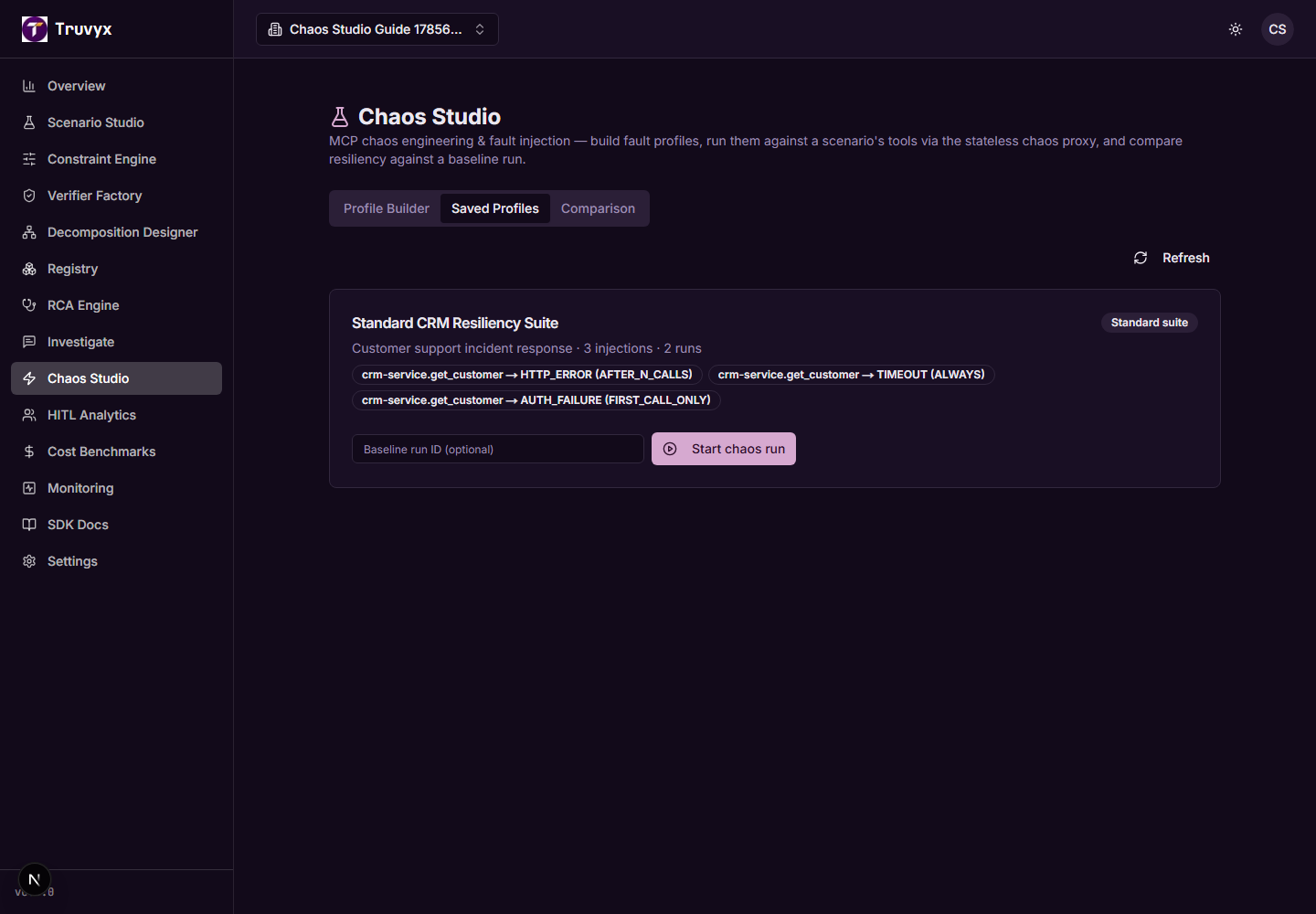
When starting a run, you can optionally enter a Base run ID. Use it when you want the comparison view to show the clean run beside the chaos run. Leave it empty when the chaos experiment is standalone.
The standard resiliency suite covers five common categories: HTTP 500 after the third call, an always-on timeout, a first-call authentication failure, probabilistic payload corruption, and sustained latency. Treat it as a starting point, then replace the wildcard target with the tool you actually want to exercise.
Step 5: point the agent at the chaos proxy
Starting a Chaos run creates an active run and tells you to point your agent’s tool calls at the stateless chaos proxy. The proxy forwards real requests when no fault triggers and returns the configured fault when it does. Every call is recorded as an injection event for later comparison.
The proxy is not a replacement for your MCP server. It is a controlled boundary in front of it. Keep the real endpoint and credentials protected, use test data, and make sure your agent cannot accidentally use the proxy for unrelated production traffic.
Record the agent’s final execution trace. The completion endpoint uses trace steps after each triggered event to judge whether the response was graceful or harmful.
Step 6: complete and score the run
Open the Comparison tab or use ?chaosRunId=… to jump directly to a run. The page shows the status, profile, scenario, base run when provided, injection events, and agent responses.
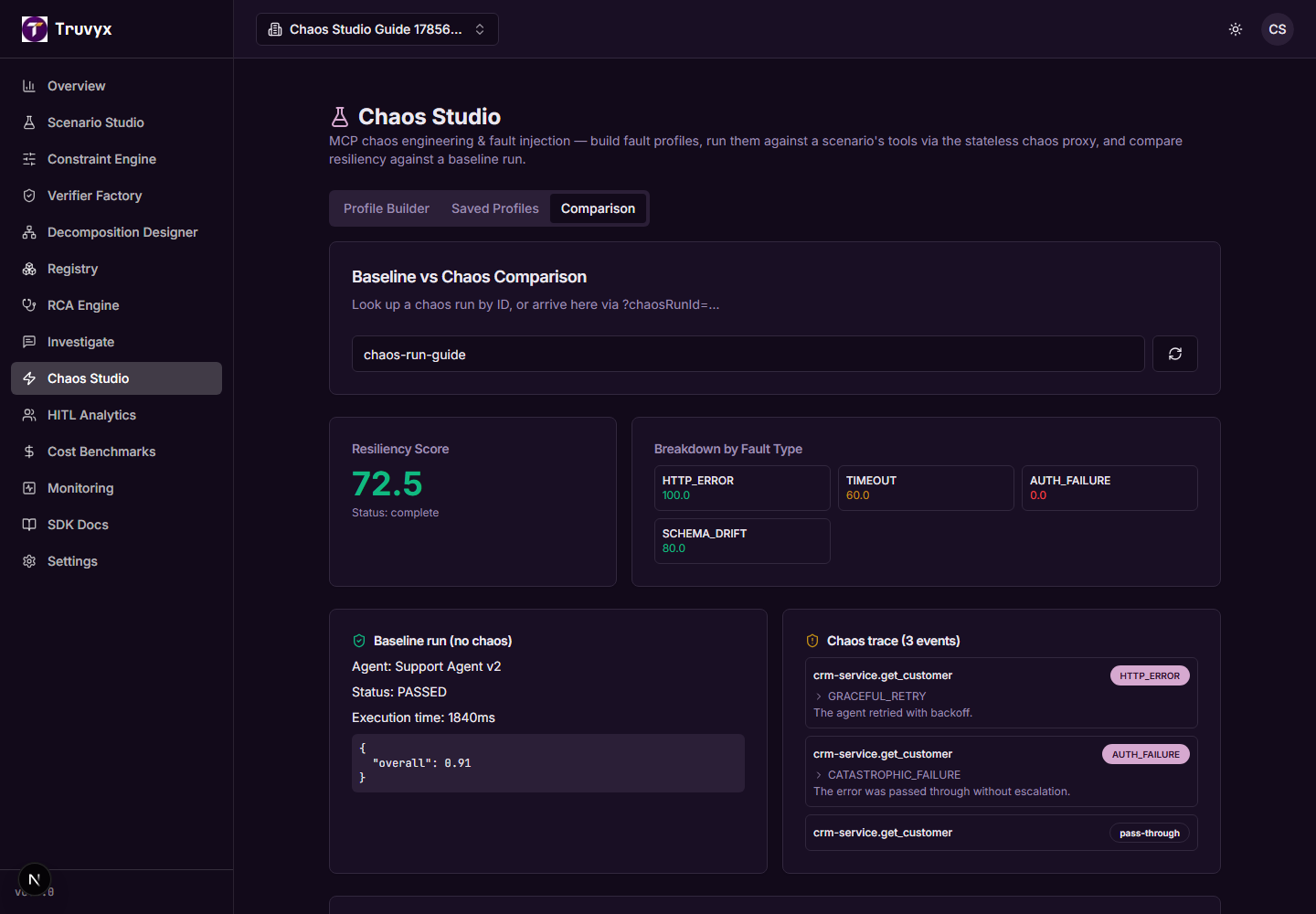
Click Complete & score this run after the agent has finished. Triggered events are classified as:
- Graceful Retry, Fallback, or Escalation: 100 points.
- Partial Recovery: 60 points.
- Silent Failure: 20 points.
- Catastrophic Failure or Propagated Corruption: 0 points.
Classification is strict: if the judge cannot classify a response, the run fails rather than silently receiving a passing grade. Non-triggered pass-through calls remain visible for audit but are excluded from resiliency scoring.
Step 7: interpret the resiliency score
The score is a weighted 0–100 result. Timeouts and authentication failures count more heavily than latency; payload corruption and schema drift also receive higher weights because they can silently damage downstream decisions.
The breakdown shows the average response score by fault type. A high overall score can hide a dangerous zero on authentication or corruption, so inspect each card instead of looking only at the headline number.
Compare chaos results with the clean base run. The comparison answers two different questions: did the agent solve the normal task, and did it behave safely when the dependency failed?
Step 8: export and connect the findings
Use Export JSON for machine-readable evidence and Export PDF for a review packet. Keep the profile, base run ID, chaos run ID, trace, injection events, classifications, and score together so the experiment is reproducible.
- Verifier Factory: add a rule that catches the unsafe response.
- RCA Engine: investigate why the agent failed to retry, fall back, or escalate.
- Investigate: ask how often the same fault or response pattern appears.
- Monitoring: track recurring resiliency regressions after a model or prompt change.
- Registry: publish a hardened scenario or versioned resiliency benchmark when it is reusable.
A safe first chaos experiment
- Create a test scenario with one MCP tool.
- Run it normally and save the base run ID.
- Create one HTTP 500 injection after the third call.
- Point the test agent at the chaos proxy.
- Capture the trace and complete the chaos run.
- Check whether the agent retried, fell back, escalated, or continued silently.
- Fix the recovery path, rerun, and compare the score.
Continue the workflow
Use the RCA Engine guide when Chaos Studio reveals a response that needs diagnosis rather than another blind rerun.