
Investigate · Beginner tutorial
How to investigate AI behavior with Truvyx Investigate
Investigate gives you a conversational way to ask what happened across evaluation runs, RCA findings, fault types, and tracked patterns. It is designed for evidence-led investigation: answers are grounded in real records, labelled by provenance, and honest when the platform has no matching data.
The most important rule
Investigate is not a blank chatbot. Its retrieval layer looks for records your organisation already has—runs, RCA reports, fault events, tracked patterns, contract test runs, cost profiles, and related aggregates. If it cannot ground an answer, it says so. That is a feature: an unsupported answer is worse than a useful “no data yet.”
Before you begin: create something to investigate
Investigate becomes useful after you have at least one Evaluation Run, a failed or partial result, an RCA report, or a tracked pattern. If you are starting from zero, create a scenario in Scenario Studio, define rules in the Constraint Engine, and submit an output through the Verifier Factory.
For a multi-agent system, RCA adds especially valuable context: fault type, agent, execution step, root-cause flag, downstream effects, and counterfactuals. Investigate can then answer questions about the records already produced rather than inventing a diagnosis.
Step 1: open an investigation session
Open Investigate from the dashboard. The screen has two working areas:
- Investigation session: your questions and answers appear as a conversation.
- Tracked patterns: standing monitors created from grounded answers.
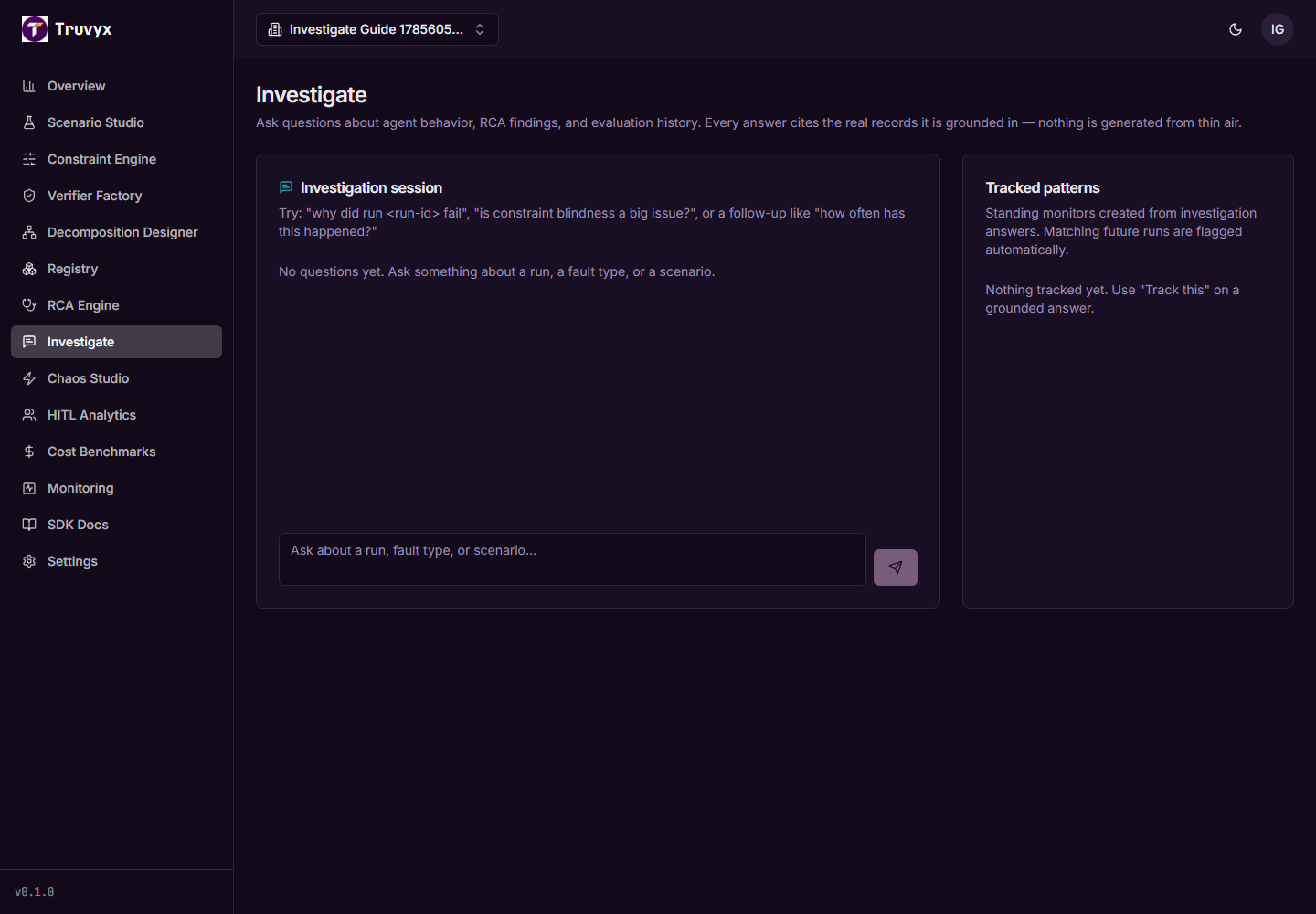
The text box accepts a question. Press Enter to send it; use Shift+Enter when you need a new line. The send button stays disabled until there is a question to submit.
Step 2: ask questions the engine can ground
Use a specific question first. Good starting forms include:
- Why: “Why did run
run-idfail?” or “What went wrong in the last incident run?” - Impact: “How often has constraint blindness happened?” or “How many runs were affected?”
- Patterns: “What are we tracking?” or “List my tracked patterns.”
- Search: mention a known fault type such as “information boundary violation.”
The engine recognises a run ID, fault-type phrases, and follow-up context from the current session. After you ask about a run, a follow-up such as “how often has this happened?” can use the earlier grounded fault event as context.
Ask one question at a time while learning the system. If you combine five unrelated investigations in one sentence, it becomes harder to tell which records support which conclusion.
Step 3: read the answer and its provenance
Every returned turn shows the question, the answer, provenance badge, and grounding-record chips. A chip names the record type and shortened ID; Evaluation Run chips can be opened to inspect the original run.
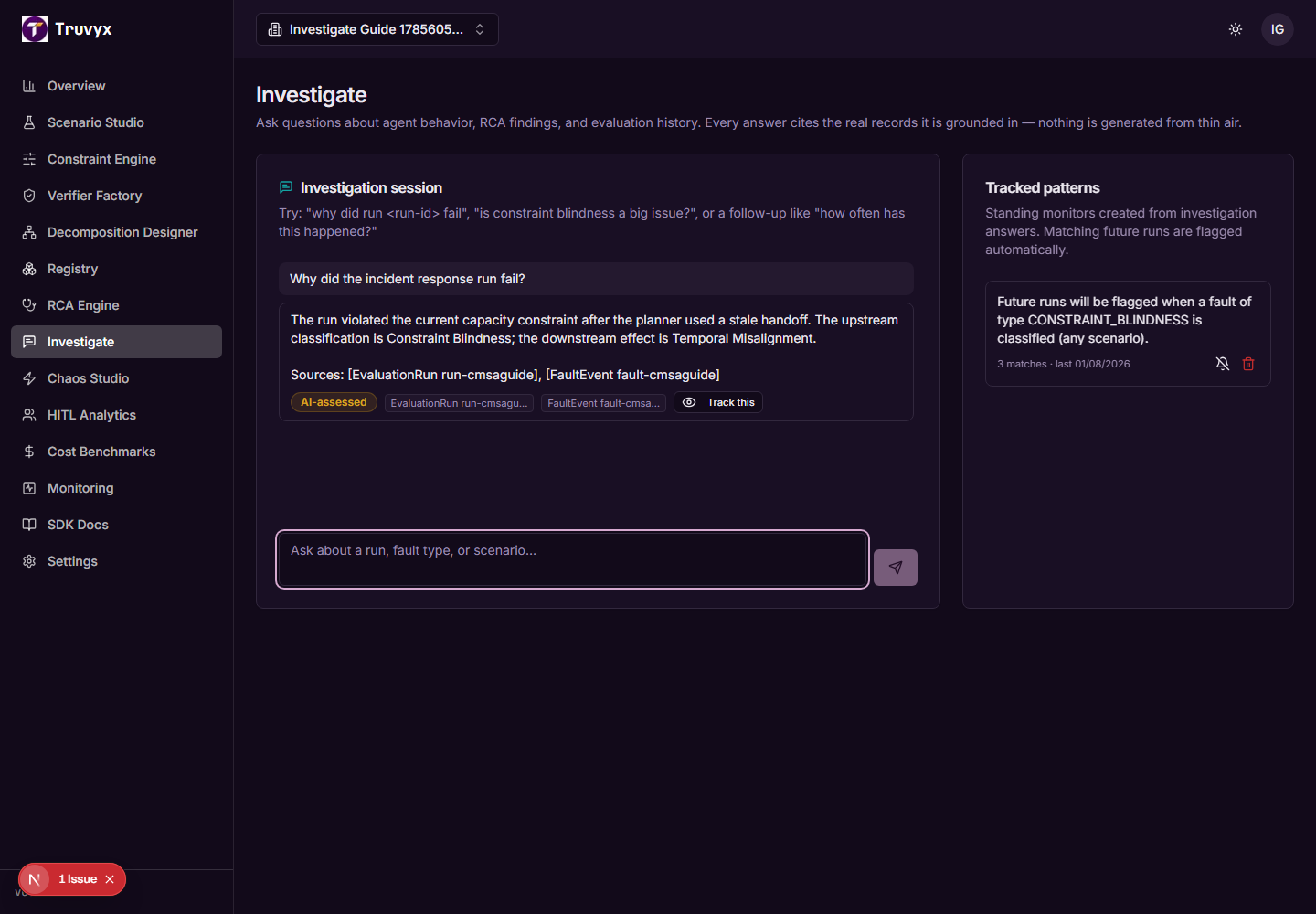
The provenance label tells you how to interpret the answer:
- Rule-based: deterministic records or aggregates, such as run counts, tracked patterns, or cost totals.
- AI-assessed: language-model phrasing or classifications based on retrieved RCA and fault records; treat them as judgments, not proofs.
- Mathematically verified: a result backed by a formal or solver-based check.
When an answer mixes deterministic and AI-assessed material, the answer includes a provenance note that distinguishes them. Read that note before turning a diagnosis into a product or safety decision.
Step 4: handle a “could not ground” answer correctly
If no matching run, RCA finding, contract result, or tracked pattern exists in your organisation, the answer says it has no data. It suggests adding a specific run ID, scenario, or fault type to the question.
Do not solve this by asking the same vague question repeatedly. Instead:
- Check that the run belongs to the current organisation.
- Open Evaluation Runs and copy the exact run ID.
- Confirm that RCA has completed if you are asking about root causes.
- Use the exact taxonomy phrase, such as constraint blindness.
- Ask a narrower question that names one scenario or one system.
This behaviour is deliberate. Investigate’s engine retrieves structured records and its phrasing layer is not allowed to create a new finding to fill an empty result.
Step 5: track a useful answer
When an answer is grounded, it can show a Track this button. Use it when the answer describes a failure you want to watch in future runs—not for every interesting observation.
Click Track this. Truvyx first opens a confirmation dialog that explains exactly what the standing monitor will match. Review the plain-language rule before creating it.
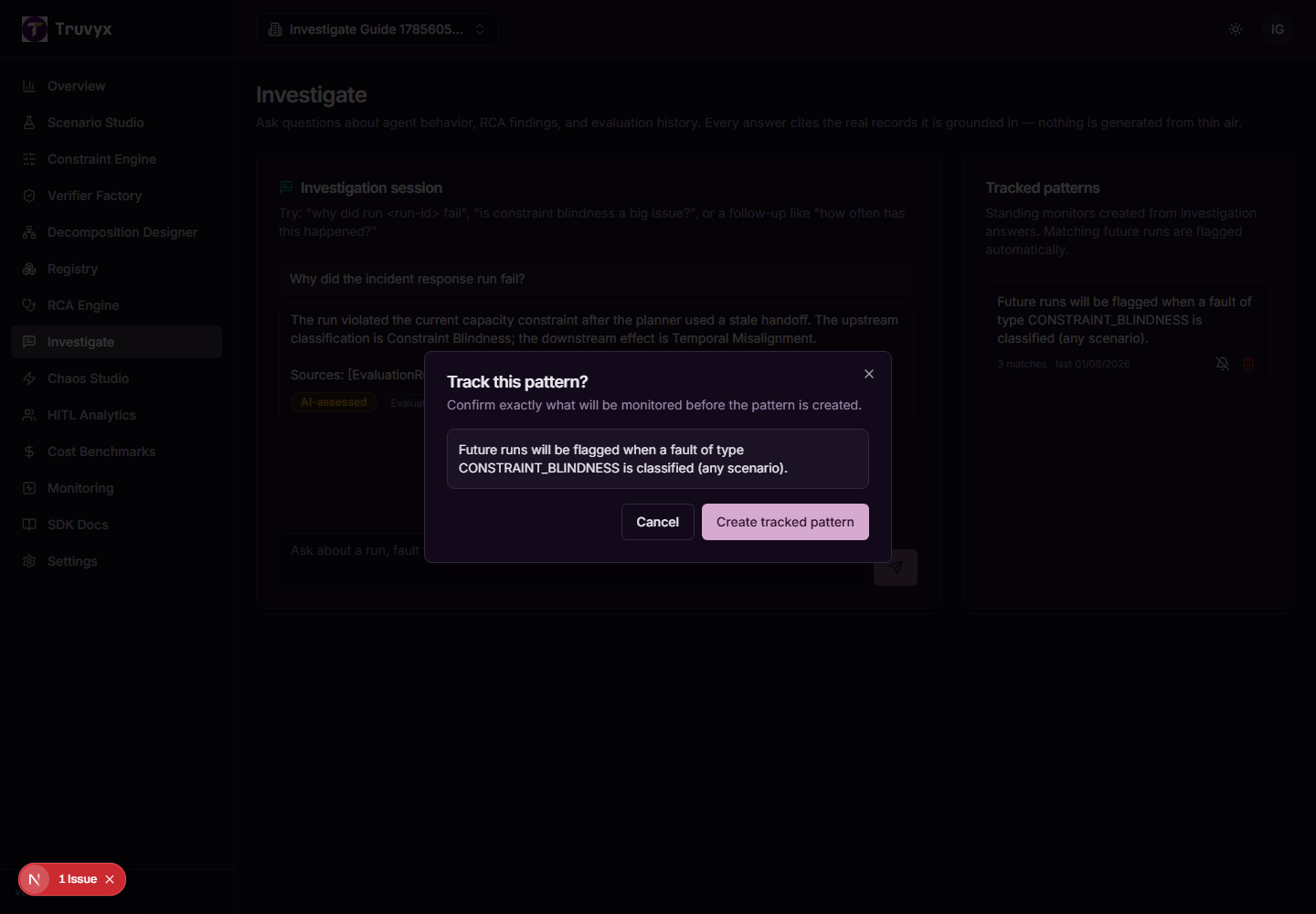
For example, a grounded answer may create a monitor for a Constraint Blindness fault, a named agent, a scenario, or a violated constraint. If the answer contains no monitorable criteria, no tracked pattern should be created.
Click Create tracked pattern to confirm, or Cancel to leave the answer untracked. After creation, the answer is labelled Tracked.
Step 6: manage tracked patterns
The right-hand panel lists standing monitors created from investigation answers. Each card shows its description, match count, and the most recent match date.
- Mute: pauses the active pattern without deleting its history.
- Unmute: makes a muted pattern active again.
- Delete: removes the standing monitor.
Active patterns are checked when evaluation runs complete. A match increments its count, records the run ID, updates the last-match time, and can use the existing notification path for Slack when your organisation has an integration configured.
Tracking is therefore a bridge between conversation and monitoring: Investigate helps you express the question; the run-completion pipeline checks it against future evidence.
How Investigate connects to the platform
- Evaluation Runs: the primary evidence source for run-specific questions.
- RCA Engine: supplies root-cause reports, fault events, and counterfactuals.
- Constraint Engine: gives meaning to constraint violations and their names.
- Verifier Factory: produces the checks whose results Investigate can explain.
- Monitoring: receives tracked-pattern matches and optional notifications.
- Slack/MCP surfaces: use the same investigation engine through other channels, with the same grounding expectation.
Investigate is the question-and-context layer over the evidence already produced elsewhere. It should help you navigate the platform faster, not replace the underlying records.
A safe first investigation
- Open one failed Evaluation Run.
- Run RCA and wait for a completed report.
- Ask: “Why did run [ID] fail?”
- Open the cited run and compare the answer with the RCA evidence.
- Ask: “How often has this fault happened?”
- Track the answer only if the pattern is worth monitoring.
- Submit another run and check whether the pattern match count changes.
Continue the workflow
When Investigate identifies a likely root cause, return to the RCA Engine guide to test a counterfactual repair.