
How-to guide · MCP
How to use Truvyx from Claude Code, Cursor, or another MCP client
Model Context Protocol gives an AI client a standard way to discover and call tools. Truvyx exposes evaluation, investigation, trace, scenario, and contract capabilities as an MCP server, so you can work from the editor where you already build agents.
What you are connecting
Your MCP client is the caller. The Truvyx MCP server is the tool provider. The connection points to https://mcp.truvyx.org and authenticates requests with an organisation-scoped trk_ API key. This is another access surface for the same evidence in Truvyx, not a second evaluation database.
A client can investigate a real run, search traces, look up a scenario, check constraints, inspect contracts, or trigger a test. It should not invent a score when no matching record exists.
Step 1: create a narrowly scoped API key
Open Settings → API Keys. Name the key for its device, such as Cursor — local investigation. For read-only investigation, start with runs:read and rca:read; add write or monitoring scopes only when you need them.
Copy the secret immediately: a newly created key is shown once. Store it in the client’s secret configuration, never in a prompt, commit, issue, or screenshot. Revoke it from the same page if the device is lost.
Step 2: connect Claude Code
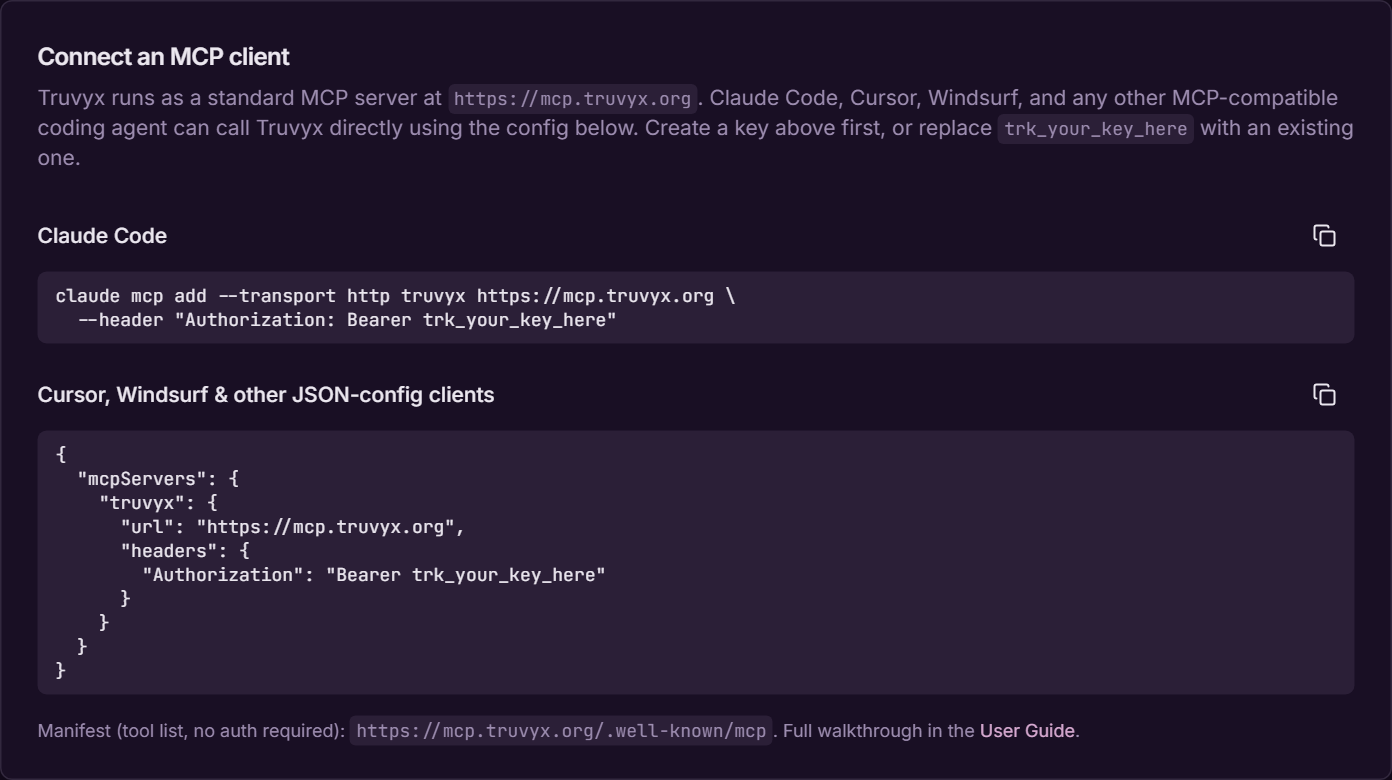
The API Keys page provides a ready-to-copy command. The important pieces are the HTTP transport, the server URL, and the bearer header:
claude mcp add --transport http truvyx https://mcp.truvyx.org --header "Authorization: Bearer trk_your_key_here"Replace the placeholder locally, then ask Claude Code to list its available MCP tools. If the connection succeeds, the client will discover the Truvyx manifest.
Step 3: connect Cursor, Windsurf, or a JSON-config client
For a client that uses an MCP JSON file, add the server entry below in its MCP settings:
{"mcpServers":{"truvyx":{"url":"https://mcp.truvyx.org","headers":{"Authorization":"Bearer trk_your_key_here"}}}}Prefer a user-level configuration for a personal key. Use a project-level configuration only with an approved secret-injection method; a key in a shared JSON file is shared with everyone who can read it.
Step 4: inspect the public manifest
The manifest tells the client the server name, protocol version, authentication method, and input schema for every tool. It does not expose your organisation’s runs or secrets and requires no authentication to inspect.
https://mcp.truvyx.org/.well-known/mcpThe tool surface includes grounded investigation, trace search, scenario lookup, failure-scenario retrieval, constraint checks, contract checks, fault-taxonomy lookup, trace submission, and test triggering. Let the client read the schemas instead of guessing argument names.
Step 5: investigate a real failure
Start with a question that identifies a record: “Investigate run run_123 and explain the highest-severity violation.” The client should call the investigation tool, cite the run and related RCA evidence, and say when the record cannot support an answer.
For recurring patterns, ask it to search traces for a named agent or failure signature, then continue in Investigate or RCA Engine. MCP makes access faster; the underlying records remain the evidence.
Step 6: run a safe test
With a write-capable key, a client can look up a scenario or trigger a test. Be explicit about the scenario ID, agent output, and environment. For a first workflow, ask the client to find a scenario, run the evaluation, return the run ID, and summarise feasibility, completeness, optimality, and critical violations.
Use a dedicated key for automation. For CI/CD, follow the SDK guide; for adversarial MCP behaviour, use Chaos Studio with test data and a controlled proxy.
Troubleshooting
- No tools appear: check the exact URL, server name, and whether the key was revoked.
- 401 or invalid key: create a key in the same Truvyx organisation and pass it as
Authorization: BearerorX-Truvyx-Key. - Tool denied: the key may be valid but missing the required scope.
- Vague answer: provide a run ID, scenario ID, agent name, or time window so the answer can be grounded.
A safe first MCP session
- Create a read-only key for a test organisation.
- Connect the client and list the manifest tools.
- Look up one known scenario.
- Investigate one completed run by ID.
- Confirm the response cites real Truvyx records.
- Only then consider a separate write-scoped key for test runs.